
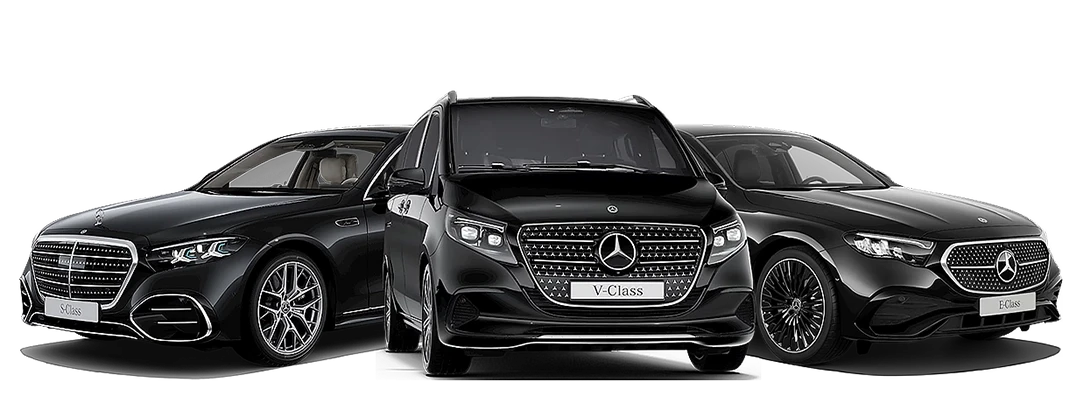
Our Fleet
Excellence Without Compromise

BUSINESS CLASS
Mercedes-Benz E Class
- →Dedicated Chauffeur Service
- →Airport Limousine Transportation
- →Point to Point Transfers — Zurich to Anywhere
- →City Tours & Sightseeing
- →Corporate Roadshows
- →Custom Services

FIRST CLASS
Mercedes-Benz S Class
- →Dedicated Chauffeur Service
- →Airport Limousine Transportation
- →Point to Point Transfers — Zurich to Anywhere
- →City Tours & Sightseeing
- →Corporate Roadshows
- →International Tours
- →Custom Services
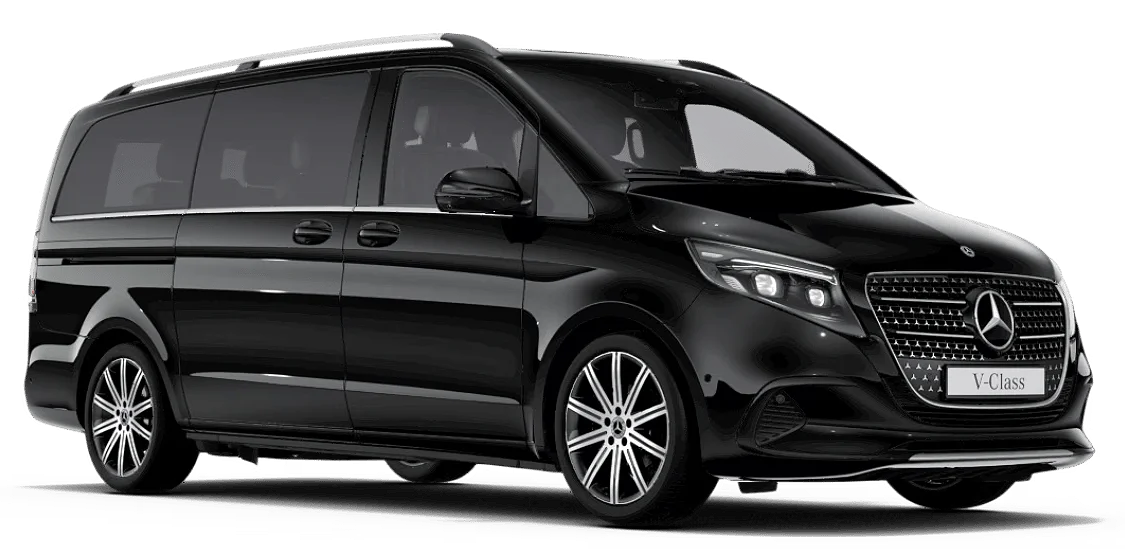
BUSINESS CLASS VAN — LUXURY MINIVAN & SUV
Mercedes-Benz V Class
- →Dedicated Chauffeur Service
- →Airport Limousine Transportation
- →Point to Point Transfers — Zurich to Anywhere
- →City Tours & Sightseeing
- →Corporate Roadshows
- →International Tours
- →Custom Services
Book Online
Reserve Your Journey
Booking your chauffeur with Limousine Service Zurich takes just a few minutes, fully online, with transparent fixed pricing from start to finish. Below is a quick overview of how the platform works — more detail and visuals coming soon.
01
Choose Your Service
Select an airport transfer, hourly service, long distance route, or custom request.
02
Pick Your Vehicle
E Class, S Class, or V Class (luxury SUV/minivan) — every rate is fixed and all-inclusive, no hidden fees.
03
Confirm & Pay
Enter your journey details and confirm your booking securely online.
04
Track & Ride
Get real-time updates and chat directly with our team before and during your trip.
Install Our App
Limousine Service Zurich can be installed directly to your phone or desktop as an app, for faster booking and instant notifications. Note: app installation isn't available in Incognito or Private browsing windows — please use a regular browser window to install.
On iPhone
1.Tap the Share button in Safari.
2.Scroll down and tap "Add to Home Screen".
3.Tap "Add" in the top-right corner.
On Android
1.Tap the Install App button below.
2.Confirm by tapping "Install" in the popup.
3.LSZ will be added to your home screen automatically.
On Desktop
1.Click the Install App button below.
2.Confirm by clicking "Install" in the popup.
3.LSZ will open as its own app, ready for one-click access.